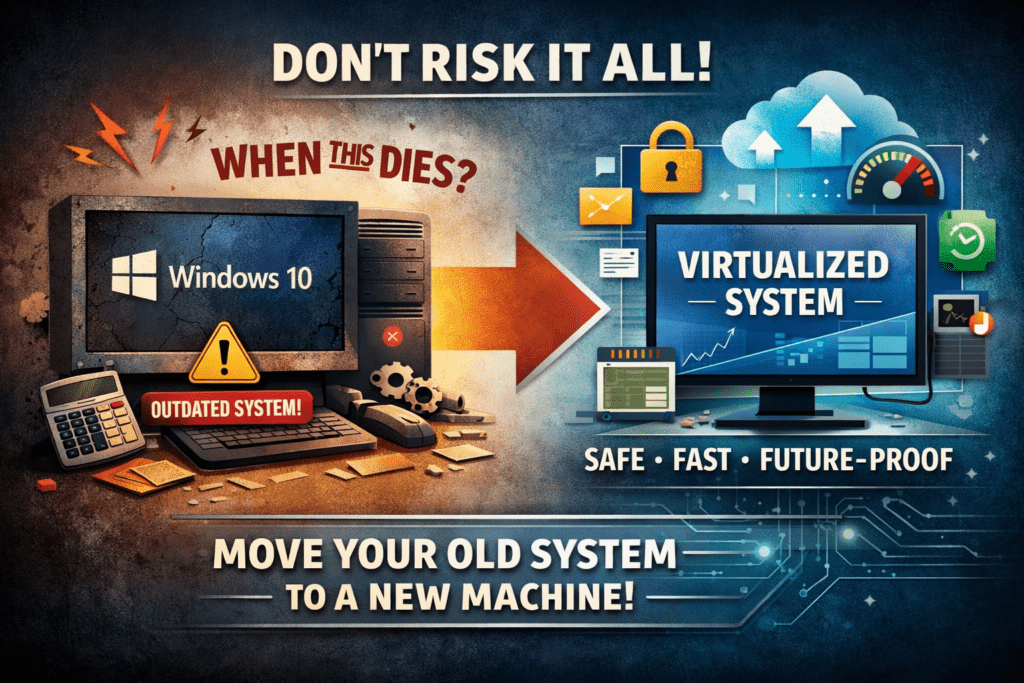
Virtualize is what I say. What? What is that? Well, let me tell you!
Intro:
Windows 10, if you are still running it, is bugging you to upgrade to Windows 11. However, one big issue, you can’t because of the hardware requirements, and you can’t stop using it, because it has all your programs on it – some of which you can not re-install for various reasons. My solution, virtualize the darn thing, and get over with it already.
Virtualization is running a computer inside another computer, software only. The devil you say – Yes, it is a special kind of voodoo, and not well known among small business owners.
Big business uses this to their advantage running multiple computers inside of one big computer, and it is a powerful technology. Yes, your business can use it. I use it, and it works great.
What you can do with Virtualization is only limited by your own creativity:
The Technology use Cases:
I use it, and I run my Exchange Server (Mail), File Server, and Quick Books on one computer, and these applications are all virtualized – Computer running inside a computer – using a software inside windows called Microsoft Hyper-V known as a hypervisor.
It has these advantages:
- Reduced Power consumption – I run three computers with the power use of one
- Reduced foot print – You don’t need to make space for three computers
- Reduced hardware cost you are not buying three pieces of hardware – Not three separate computers
- If you need to reboot a computer, go to the hypervisor console and just reboot that one
- Depending on how you set it up, the virtualization, is a way faster performance
You may be thinking to yourself there is no way I would use something like this – fair statement.
“You are an IT guy that has a need for speed and efficiency,” and I would say that you as a small business don’t need every advantage you can get – That’s a really statement.
I will show you three use cases other than myself where I have implemented the concept virtual machines, and they all work great – your small business can use this technology.
The Accountant and Lotous 1-2-3:
Yes, the title is correct Lotus 1-2-3. I have this Accountant that was using an old version of Lotus 1-2-3, and he had all of his customers on various spreadsheets in Lotous, and when he went to a new computer, he did not want to buy the new version at that time.
My solution with going to Windows10, at the time, was to virtualize Windows 7 which held the program Lotus 1-2-3. Ran the Windows7 virtualization inside a new windows 10 computer, and it worked great.
I setup it up so that when he booted windows 10, he opened up a remote desktop to the Windows 7 virtual machine, and when he made it full screen, it was just like he was working on his old Windows 7 machine – It is a work of great beauty. He was still utilizing his old software, and old Windows 7, but for his purposes still works for what he needs.
But, wait there is more – Windows 11 is here, and I took that same Windows 7 with Louts 1-2-3 and virtualized it in Windows 11. It still works great. Just like it did in Windows 7, and that Windows 7 install must be at least 25 years old.
Remember, when I said, depending on how you setup the virtualization it will be way faster. This is way faster than the original Windows7 system. My accountant’s new system is running Windows 11 with 32 Gigs of, RAM PC4 3200, and a Core i5 processor that has 6 cores on it. This old Window 7 system is not your Grampas Windows it runs very fast.
My not-for-profit Downtown:
I do work for a not for profit down town Chicago, and they let go staff, and outsourced a few key functions – Marketing & Accounting.
However, they want all the work done on their system, and save files to the server on site, in the office location. These outsourced functions are remote, and they need a computer to VPN into to do the work.
My solution was to build a Virtualization computer using Windows Server 2016, Standard, that could hold up to 4 VM’s, Virtual Machines. The system is working perfectly, and it allows for a lot of flexibility.
If they need another computer for a special purpose for some reason, all you have to do is load the OS virtually, and load the programs into the hypervisor. When you don’t need that computer any more, archive the virtual files. If you do need it, it can be brought back again. Virtualization is a very flexible and powerful tool.
They have three virtual computers setup inside the virtualization system for the outsourced staff to work on remotely. Having this kind of setup allows for more control. Since these computers are joined to the domain, my client can control login hours, patch updates, cut and paste options, and many other domain policies to secure their information.
Tonight, I spent about 1.5 hours of setup for a virtual system for a new staff member that is going to be remote. Other than my time, the only other cost is price of the OS to load on the virtualization system.
I got this new employee up and working fast, no additional hardware on my customers end, just software configurations. My customer is using the exact same amount of electrical power, and no extra hardware or floor space for this remote person’s computer.
My Job shop:
I have this small manufacturing shop, and when I took over no employees had access to the internet from their computers other than the owner and accountant. They did have a computer that was a public computer that could be use by the employees to look up things.
When I asked why that was, the owner said they got hit with ransomware off an employee computer and it spread thru the company.
When I explained the concept of virtualization to the owner he liked it. In essence, I explained that each computer could be connected to the internet and the virtual computer could have access, and if that virtual computer got infected just snapshot the computer, back to the way it was before the infection, malware gone.
The virtual machine is in no way connected to your segment of the network, and each virtual machine can be setup in such a way, that it will have its own private IP address not connected to anything else. In this situation, it is highly unlikely a virtual machine will infect the real network. That was 5 years ago and still working.
Conclusion:
The Machine Inside the Machine:
So, here’s the bottom line. Virtualization isn’t just for Fortune 500 companies or tech geeks with too much coffee in their system. It’s practical, powerful, and it’s sitting right there inside your Windows 11 system waiting to be used.
If you’ve got old software you can’t replace, a need to keep things isolated for security, or just want to squeeze more life and power out of the OS you already own—virtualization is the way. You don’t need to keep using that machine that “has all your programs you can’t move.” You can keep it alive inside a newer system, running safely and faster than it ever did before. It’s kind of like the 6 million Dollar Man.
Eventually that system running those old programs will fail and all your data and programs will fail right along with it. Virtualization will move that old OS to new hardware, and give it a new lease on life.
I’ve been doing this for years in my office, for my clients, for businesses that didn’t think they could afford enterprise solutions. Guess what? You can. It’s all software, it’s all possible, and it’s all about knowing what tools you’ve got in your toolbox.
So next time you hear somebody say, “I can’t upgrade, all my old stuff is on my Windows 10,” tell them: yes, you can. You just virtualize it.
That’s the beauty of virtualization. It’s the art of keeping what works—and making it better.